


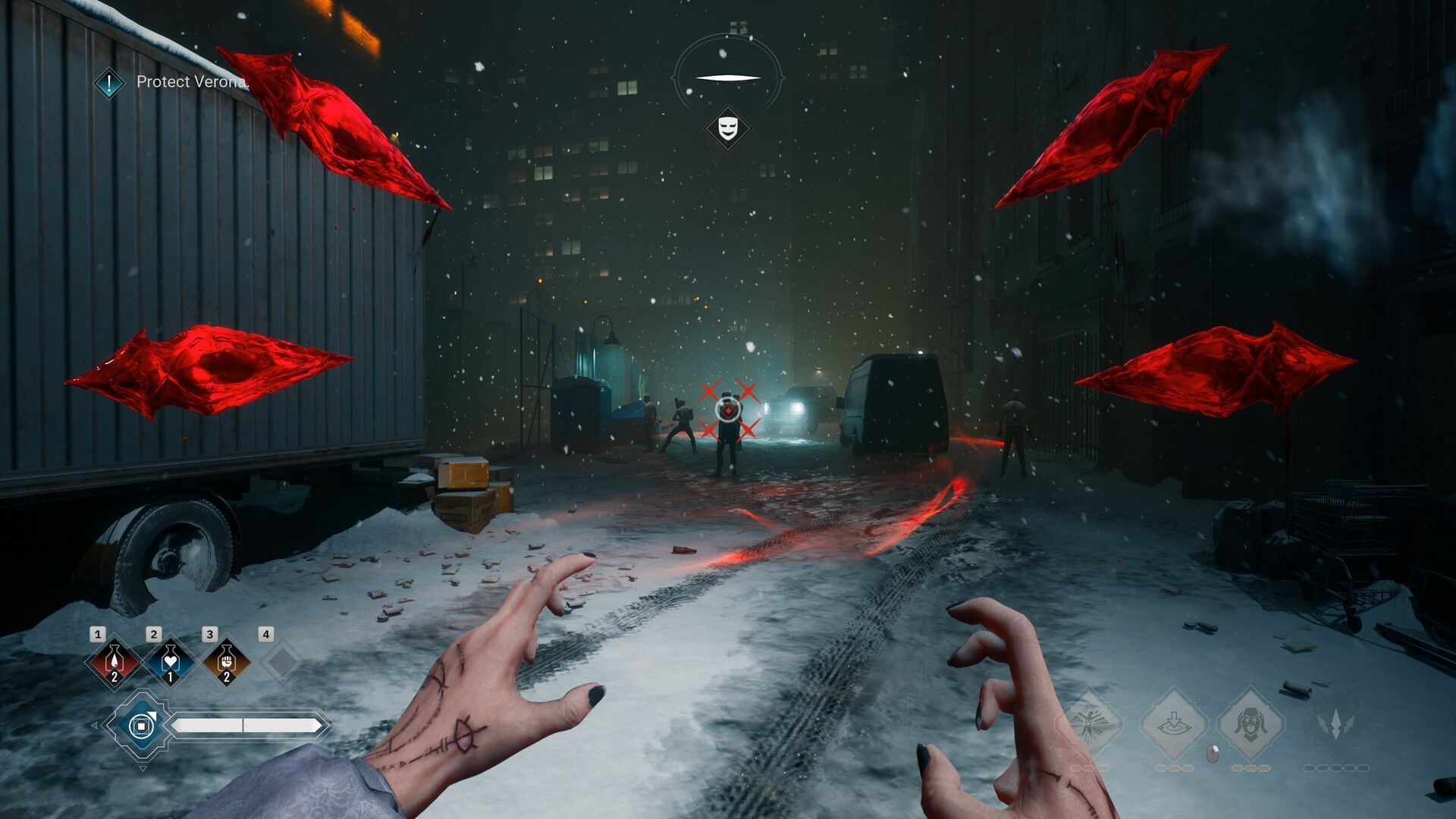
Vampire: The Masquerade – Bloodlines 2 Crashing on PC: Possible Reasons and Fixes
Are you experiencing frustrating crashes while trying to play Vampire: The Masquerade – Bloodlines 2 on your PC? You’re not alone. This highly anticipated sequel has drawn in players with its captivating storyline and rich lore, but technical issues, particularly game crashes, have left many gamers feeling disappointed. In this article, we will explore the possible reasons behind these crashes and provide effective fixes, ensuring that your gaming experience is as seamless as possible.
Understanding the Crashes
Crashes in Vampire: The Masquerade – Bloodlines 2 can stem from various factors. Understanding these can help you tackle the problem effectively. Here are some of the most common reasons why the game may crash on your PC:
1. System Requirements Not Met
One of the primary causes of game crashes is running the game on hardware that doesn’t meet the minimum system requirements. Bloodlines 2 is graphically demanding, so ensure your PC meets the following requirements:
- Operating System: Windows 10, 64-bit
- Processor: Intel Core i5-2500 / AMD FX-8320
- Memory: 8 GB RAM
- Graphics: NVIDIA GeForce GTX 960 / AMD Radeon R9 380 (with 4GB VRAM)
- DirectX: Version 11
2. Outdated Drivers
Graphics driver updates are crucial for optimal game performance. Outdated or corrupt drivers can lead to instability and crashes. Ensure your graphics card drivers are up to date by visiting the manufacturer’s website (NVIDIA or AMD) for the latest versions.
3. Game Files Corruption
Sometimes the game’s files become corrupted, leading to crashes. This can happen during installation or even through updates. Fortunately, most game launchers offer a feature to verify the integrity of the game files.
4. Software Conflicts
Background applications can interfere with the game’s performance. Software like screen recorders, overlays (like Discord or GeForce Experience), or even antivirus programs may conflict with Bloodlines 2. These can be temporarily disabled to test if they are the root cause.
5. High Graphics Settings
Vampire: The Masquerade – Bloodlines 2 has an array of graphical settings. If you’re playing on settings that are too high for your hardware, this could lead to crashes. Lowering these settings might help stabilize the game.
Effective Fixes for Crashes
If you’re facing crashes while playing Bloodlines 2, here are some effective solutions you can try:
1. Check and Update System Drivers
- Graphics Drivers: Update your GPU’s drivers to ensure compatibility.
- DirectX: Make sure your DirectX version is up to date; update through Microsoft’s website if necessary.
2. Verify Game Files
If you’re using Steam, follow these steps:
- Right-click on Vampire: The Masquerade – Bloodlines 2 in your library.
- Select “Properties.”
- Navigate to the “Local Files” tab.
- Click on “Verify Integrity of Game Files.”
This process will check for corrupted files and replace them.
3. Adjust Graphics Settings
To lower the risk of crashes:
- Launch the game.
- Go to Options > Graphics Settings.
- Lower the resolution and graphical fidelity.
- Turn off demanding visual effects like Anti-Aliasing and V-Sync.
4. Disable Background Applications
Temporarily disable any background software that could cause conflicts:
- Close Discord, overlay features, or any screen recording software.
- Disable any active antivirus programs while playing.
5. Run the Game as Administrator
Right-click the game icon and select “Run as Administrator.” This can resolve permission-related issues that lead to crashes.
6. Check for Windows Updates
Ensure your operating system is up-to-date. Go to Settings > Update & Security > Check for updates, and install any pending updates.
7. Reinstall the Game
If all else fails, consider uninstalling and reinstalling Vampire: The Masquerade – Bloodlines 2. This can clear out any residual issues affecting performance.
Conclusion
Crashes in Vampire: The Masquerade – Bloodlines 2 can be frustrating, but by understanding the possible reasons and applying the fixes outlined in this article, you can enhance your gaming experience. Keep your system updated, check your hardware compatibility, and don’t hesitate to reach out to community forums or support channels for more assistance. Dive back into the dark and immersive world of Bloodlines 2, equipped with the knowledge to tackle those pesky crashes head-on!
By carefully managing your PC’s settings and staying informed about updates and community solutions, you can enjoy the haunting allure of Vampire: The Masquerade – Bloodlines 2 without interruption. Happy gaming!
About the Author

